Fill, sign and manage PDF forms online
Create a professional form experience, capture structured information, add signatures and turn completed answers into a PDF your team can share, review, print or archive—without copying the same data between tools.
Updated September 2026 · PDF behavior varies by browser and reader
What does an online PDF filler do?
An online PDF filler helps people enter information into a document without printing it first. A useful PDF workflow may include text fields, dates, checkboxes, selected options and a signature. The completed file can then be downloaded, shared or retained as a stable record.
For businesses, filling the document is only one part of the problem. The information may also need validation, searchable storage, notifications, approval, payment processing or delivery to another application. AbcSubmit combines online forms, PDF output and workflow automation so the same submission can support both the respondent and the team handling the result.
How to fill and process a PDF form online
Create
Build the form fields and arrange the information your process actually needs.
Complete
Enter answers through the published form or supported interactive document.
Sign and verify
Add the appropriate signature or acknowledgement and review the completed data.
Submit and act
Store the record, produce the PDF and continue with notifications or approvals.
Collect information with a responsive form
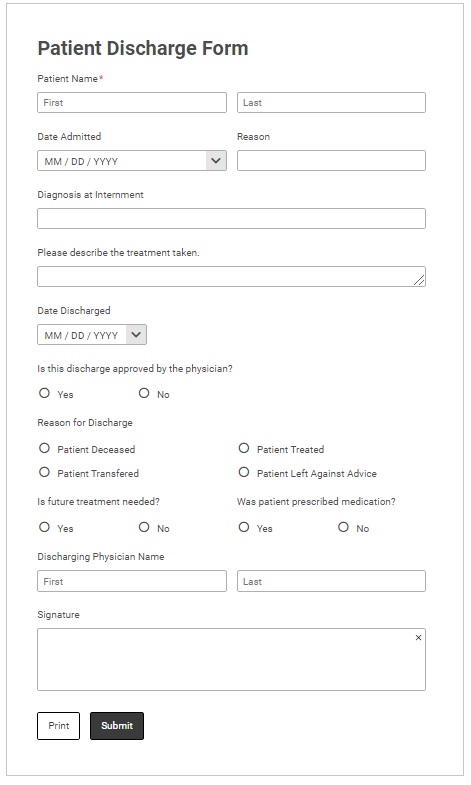
A browser-based form can guide people through the process, adapt to mobile screens and validate entries before submission. Conditional logic can hide irrelevant questions and reduce the chance of incomplete paperwork.
- Ask one clear question at a time.
- Use dates, choices and validated numbers where possible.
- Make only genuinely essential fields required.
- Explain why uploads, signatures or consent are needed.
- Test long names, addresses and paragraph answers.
Learn how to create fillable PDF forms with the online editor.
Generate a clean PDF from submitted data
Once the form contains validated information, use it to produce a consistently formatted document. This avoids asking staff to retype contact details, quantities, descriptions or approvals into a separate PDF.
Generated documents are useful for applications, inspection reports, invoices, service summaries and signed acknowledgements. Keep the underlying structured record for searching and automation, while using the PDF for sharing, printing or archiving.
See the complete guide to designing and exporting PDFs from AbcSubmit forms.

PDF form, online form or generated PDF?
| Format | Best suited to | Watch for |
|---|---|---|
| Interactive PDF | Familiar documents, stable page layout, completion in a compatible PDF reader. | Reader compatibility, small-screen usability and submission behavior. |
| Responsive online form | Mobile-friendly entry, conditional questions, validation and immediate automation. | Internet requirements unless an offline app workflow is configured. |
| PDF generated from a submission | Consistent applications, reports, invoices or records created from structured data. | Long answers, page breaks, missing values and access to completed documents. |

Add a signature without making vague legal promises
A signature field can record an acknowledgement, approval or acceptance. The right implementation depends on the risk and legal requirements of the document—not simply whether a signature image appears on the page.
- Place the relevant terms before the signature.
- Make the signer’s intent clear.
- Keep appropriate submission and workflow evidence.
- Protect the completed document and its source data.
- Seek qualified guidance for regulated or high-value agreements.
Automate what happens after a PDF form is completed
Confirm receipt
Notify the respondent and the responsible internal team that the information arrived.
Route for review
Use conditions to send applications, requests or documents to the appropriate reviewer.
Request corrections
Return incomplete information for editing rather than abandoning or recreating the record.
Generate documents
Create a consistent PDF for distribution, printing or retention.
Update structured data
Store searchable values in a collection instead of relying only on email attachments.
Connect other systems
Use supported integrations, webhooks or workflow actions to continue the business process.
Explore multi-step approvals, form automation software and ready-made workflow templates.
Collect payment through the connected form workflow
AbcSubmit’s current feature matrix lists payment fields and processors including PayPal, Stripe Checkout, Square, Braintree and other options, with availability varying by plan. This can support orders, registrations, appointments, deposits and service requests.
Payment authorization generally requires an online connection to the processor. Make prices, fees, taxes, refund terms and the payment timing clear before the user confirms.


Collect data offline, then create the record
A crew working without reliable service can use AbcSubmit’s advertised offline app workflow to prepare forms, retain submissions on the device and synchronize them when connectivity returns. After synchronization, the data can continue into notifications, storage, approvals or PDF generation.
Offline compatibility depends on devices, permissions, form fields and plan configuration. Test the exact workflow in flight mode before deployment. See the offline forms guide for field teams.
What can an online PDF filler workflow handle?
Client intake
Collect contact details, needs, consent and supporting documents, then create a client-ready summary.
Employee onboarding
Gather structured information and acknowledgements without emailing blank documents back and forth.
Inspections
Combine checklist results, notes, photos and signatures in a printable report.
Service records
Document work completed, materials used, follow-up actions and customer acceptance.
Orders and invoices
Use customer and product data to produce a clear transactional document.
Internal requests
Route purchase, access, leave or budget requests through defined approval paths.
Test the PDF filling experience before publishing
- Complete the form on desktop and mobile.
- Use the browsers and PDF readers your audience is likely to use.
- Verify required fields, validation and tab order.
- Test unusually long answers and missing optional values.
- Check signature, download, print and submission behavior.
- Inspect margins, page breaks and text readability.
- Confirm notifications and approval paths.
- Verify who can access, export and delete completed records.

Hosted PDF workflows or on-premises control
AbcSubmit offers cloud plans and advertises an on-premises deployment option. The current on-premises overview lists unlimited users, forms, results and storage, full workflows, custom database options, LDAP/Active Directory provisioning, and Windows or Linux server support.
On-premises deployment adds operational responsibility. Evaluate security, backups, availability, upgrades, identity management, support and total cost. Read the on-premises form builder overview and confirm the current scope with AbcSubmit.
Online PDF filler FAQ
Can I fill out a PDF form online?
Yes, when the document and chosen viewer support interactive fields. An alternative is to complete a responsive online form and generate the finished PDF afterward.
Can AbcSubmit generate PDFs from form submissions?
Yes. AbcSubmit supports workflows in which structured form data is used to create a consistent PDF document.
Can I add a signature to a PDF form?
Signature fields are listed in AbcSubmit’s feature matrix. For legal or regulated use, verify identity, consent, evidence and retention requirements for your situation.
Will a PDF filler work on a phone?
It can, but fixed documents may require zooming and some readers handle interactive fields differently. A responsive online form is often easier on a small screen.
Do users need Adobe Acrobat Reader?
Not always, but interactive behavior varies. If you rely on features tested in Acrobat Reader, explain that supported path and link to the appropriate reader.
Can a completed PDF start an approval workflow?
The associated form submission can enter an AbcSubmit workflow with conditional routing, notifications, approvals, request-edit steps and other supported actions.
Can I fill forms offline?
AbcSubmit advertises an offline forms app. Test your fields, devices and synchronization process, and verify plan availability before operational use.
Is AbcSubmit’s PDF filler free?
AbcSubmit publishes a free plan, but limits and advanced capabilities vary. Check the current pricing and feature matrix.
Product and compatibility notes
This guide was reviewed against AbcSubmit’s public feature matrix and Adobe’s fill-and-sign documentation in September 2026. Features, limits and reader behavior may change.
References: AbcSubmit plans and features and Adobe Acrobat fill-and-sign guidance.
Make completed PDFs useful to the whole team
Collect better information, produce a consistent document and automate the follow-up work from one connected process.